


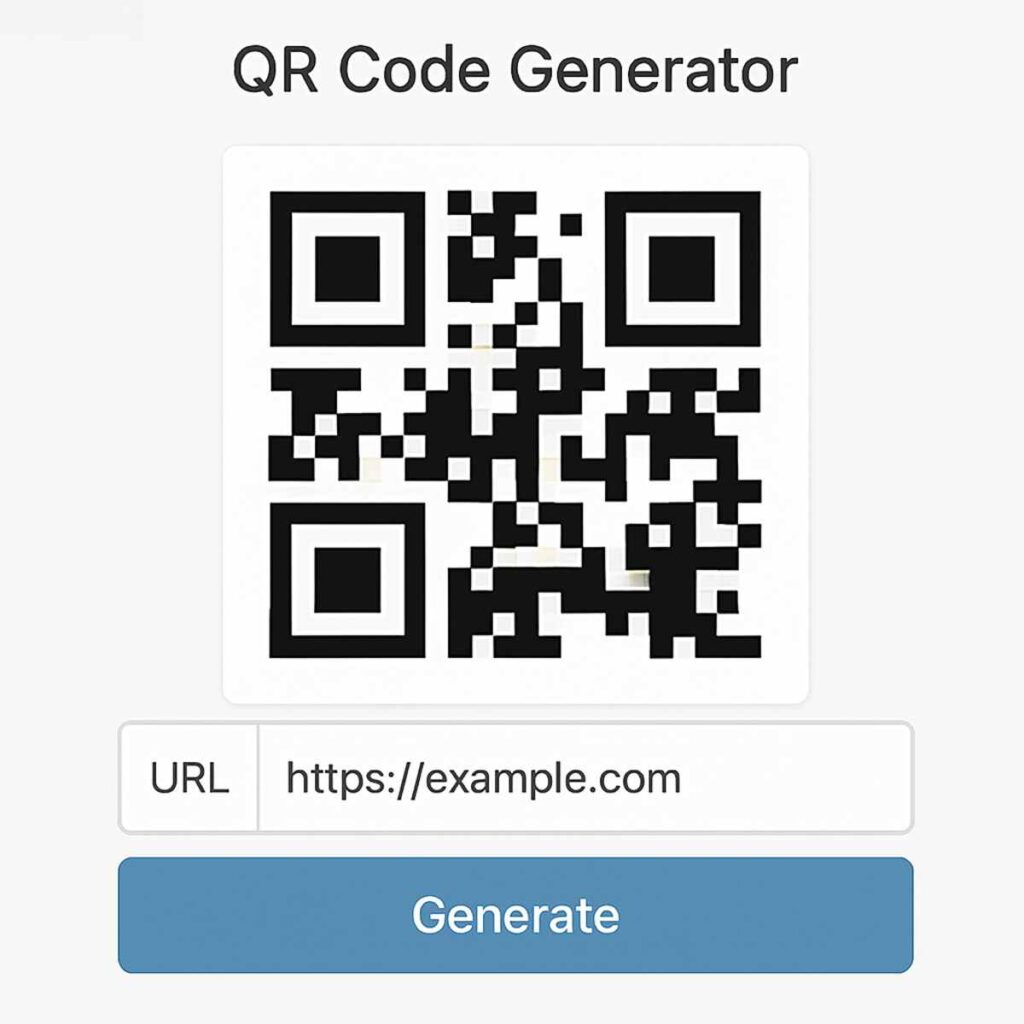
Telling someone a long, messy web address is a recipe for frustration and typos. There’s a much better way to bridge the gap between your physical world and your digital content, and it’s probably sitting on a coffee shop menu near you right now. Those little black-and-white squares are more than just a passing trend; they are a simple solution to a common problem. Read the Best info about qr code generator.
A QR code is designed to solve this. Think of it as a visual hyperlink. Instead of clicking a link on a screen, you scan the code in the real world with your phone’s camera. That jumbled web address instantly becomes a neat, scannable square that works every time, connecting people directly to what you want to share.
The best part? You don’t need to be a tech wizard to create your own. Learning how to make a QR code is surprisingly simple, often free, and takes less than a minute. Whether you’re sharing a link to your business website, a party invitation, or just want to give guests Wi-Fi access without spelling out a complex password, a QR code is the perfect tool for the job.
This guide walks you through the entire process, step by step. You’ll learn the basics of creating a code for a website, understand the one crucial choice you’ll need to make, and discover other clever ways to use them. By the end, you’ll be able to create custom, effective QR codes for any project.
Your First QR Code in 60 Seconds: A Step-by-Step Guide
Ready to create your own QR code? You don’t need any special skills or software—just a link you want to share. The magic happens with a tool called a QR code generator, which is typically a free website that does all the work for you. In less than a minute, you can learn how to make a QR code for a website, a social media profile, or any online destination.
The process is straightforward, as most online generators follow the same simple steps.
- Choose a Generator: Open your web browser and search for a “free QR code generator.” Most of the top results are easy to use and don’t require a login for basic codes.
- Select “Website” or “URL”: On the generator’s site, you’ll see different types of information you can store. Select the option for a website link, which is the most common use.
- Paste Your Web Address: In the text box provided, paste the full link you want people to visit. This could be your business homepage, an event registration page, or even a link to a Google Maps location.
- Download the Image: Click the “Generate” or “Create” button. Your QR code will appear instantly. Now, just download it as a PNG file. Think of a PNG as a standard image file, just like a photo, that’s perfect for adding to emails, business cards, and flyers.
That’s it! You’ve just turned a web link into a scannable, physical shortcut. Before you start printing it on everything, however, there’s one quick but important decision to make that affects what you can do with your code later on.
The Most Important Decision: Static vs. Dynamic QR Codes
That QR code you just made belongs to one of two families: static or dynamic. Choosing the right one is the single most important step, as it determines whether your code is permanent or can be changed later. The difference is simple but crucial.
Think of a Static QR code like a message carved in stone. The information—like the web address you entered—is locked directly into the black-and-white pattern. Once it’s made, you can never edit the QR code destination or change where it leads. This makes them perfect for information that will absolutely, positively never change, like your company’s founding date or a link to a permanent document.
A Dynamic QR code, on the other hand, is like a message on a digital billboard. The code itself stays the same, but you can update the destination link whenever you want. If your restaurant menu changes or your weekly sales flyer is updated, you can redirect the code without having to reprint a single thing. Most services that offer dynamic codes also let you see how many people have scanned them.
So, when comparing static vs. dynamic QR codes, which is right for you? Here’s a quick breakdown:
| Static QR Codes | Dynamic QR Codes | | :— | :— | | Permanent. The link cannot be changed. | Editable. You can change the link anytime. | | Good for info that never changes (e.g., a Wi-Fi password). | Best for info that might change (e.g., menus, event details). | | Usually free and they do not expire. | Often requires an account and may be part of a paid plan. |
For almost any business or marketing purpose, a dynamic code is the safer, more flexible choice. Now that you understand the mechanics, let’s explore how you can get creative and make your QR code stand out from the crowd.
How to Make Your QR Code Stand Out with a Custom Logo and Colors
Beyond the basic black-and-white square, most QR code generators offer design tools that can transform your code from a generic box into a branded invitation. The most powerful change you can make is to add a logo. Placing your company or event logo in the center of the code provides immediate context and builds trust. When people see a familiar image, they know who the code is from and what to expect, making them far more comfortable pulling out their phone to scan it.
The same principle of branding applies to color. You can often change the black pixels to match your brand’s color palette, helping the QR code feel like a natural part of your flyer, business card, or packaging. However, there’s one critical rule for QR code design best practices: maintain high contrast. A light-colored code on a light background (or a dark code on a dark background) will be difficult or impossible for a phone’s camera to read. Always stick with a dark pattern on a light, plain background for guaranteed scannability.
Ultimately, taking a moment to generate a QR code that is visually appealing pays off. A custom QR code with a logo doesn’t just look better; it signals professionalism and legitimacy, which can significantly increase the number of scans it receives. Now that you know how to create a code that is both functional and stylish, you can start putting it to work in all sorts of clever ways.
The Easiest Way to Share Your Wi-Fi Password with Guests
Tired of spelling out your long, complicated Wi-Fi password every time a friend or family member comes over? There’s a much more elegant solution. You can use a QR code generator to create a special code that instantly connects guests to your network, no typing required. It’s a small touch that feels like magic and saves everyone from the frustration of mistyping a password.
To get started, simply choose the “Wi-Fi” option in the QR code generator. You’ll see a few fields to fill out: your network’s name (often called the SSID), your password, and the network encryption type. For that last option, “WPA/WPA2” is almost always the correct choice. If you’re unsure, this information is usually printed on the sticker on your internet router. Once you fill in the details, the generator does the rest.
Now you know how to make a QR code that acts as an automatic key to your internet. When you create a QR code for a Wi-Fi password and place it somewhere visible—like on the fridge or in a small picture frame—guests can just point their phone camera at it. Their device will instantly ask if they want to join the network. They tap “Join,” and they’re connected. It’s faster, easier, and you never have to say your password out loud again.
Turn Your Business Card Digital with a vCard QR Code
Imagine you’re at a networking event or meeting a new client. Instead of fumbling for a paper business card that might get lost, you can offer something much more modern and effective. A special type of QR code can transfer all your contact details directly into their phone’s address book in a single scan, ensuring you don’t just get forgotten in a wallet.
This powerful tool is called a vCard QR code. When you use a QR code generator to create one, you’re essentially making an instant digital business card. When someone scans it, their phone doesn’t open a website. Instead, it prompts them to save a new contact, with your name, phone number, and email address already filled in perfectly. This is what a vCard QR code is: your contact info, made scannable.
The biggest benefit is speed and accuracy—no more typos from someone trying to manually enter your details. It makes a great impression and ensures you actually make it into their contacts list. Many tools even let you create a custom QR code with a logo, making your digital card look extra professional. While sharing Wi-Fi and contact details are popular, they’re just the beginning of what these codes can do.
Beyond Links: 5 More Powerful Uses for Your QR Codes
While linking to a website is the most common use for a QR code, its real power lies in its versatility. For example, if you want to generate a QR code for a PDF, like a restaurant menu or a product manual, the process is simple. You first upload your file to a service like Google Drive or Dropbox, get its public sharing link, and then paste that link into a QR code maker online just as you would with any web address.
This “link-to-anything” approach works for many other tasks, too. You can eliminate the risk of customers getting lost by making a QR code for Google Maps that takes them right to your front door. The possibilities are surprisingly broad, opening up creative ways to share information instantly. Here’s a quick look at what’s possible:
- PDF: Share a menu, price list, or guide instantly.
- Google Maps: Give people perfect directions to your store or event.
- Email: Let customers contact you with a pre-filled subject line.
- Plain Text: Display a hidden message, a clue for a game, or a product serial number.
- App Store: Send users directly to your app’s download page.
Each of these turns a simple square into a powerful shortcut. But once you’ve printed your code on a flyer or poster, how do you know if it’s actually working? This is where dynamic codes truly shine, giving you the ability to see exactly how many people are scanning your codes and when.
How to Track Scans and Measure Success with Dynamic Codes
One of the biggest advantages of dynamic QR codes is that they come with a built-in “report card.” When you create one, you typically gain access to a simple tracking dashboard. This private dashboard shows you how many times your code has been scanned, often including helpful details like the time of day, the scanner’s general location (city and country), and the type of phone used (iPhone or Android).
This information is incredibly powerful. Imagine you’re a musician who placed QR codes on posters at two different venues to promote a new song. When you track QR code scans and analytics, you might discover the poster at the coffee shop got 150 scans, while the one at the library only got 12. You now have clear proof of where your audience is, helping you make smarter decisions for your next promotion.
All of this data is neatly organized in your account on the QR code generator’s website. It’s not complicated; think of it like a simple scoreboard for your marketing. This is especially useful for a small business running multiple campaigns, as you can compare the performance of every code in one place. This feature is a game-changer for anyone using bulk QR code creation for business, turning each code into a source of valuable feedback.
Ultimately, these analytics take the guesswork out of your efforts. Instead of wondering if anyone is using your code, you’ll know for sure. But having a trackable code is only half the battle. How do you design and present your QR code in a way that people will actually want to scan?
3 Essential Rules for QR Codes That People Will Actually Scan
Creating a trackable code is just the first step; getting people to use it is the real goal. A mysterious black and white square on its own can be intimidating. That’s why the most important thing you can add is a simple instruction right below it—what marketing pros call a Call to Action (CTA). Just a few words like, “Scan for Menu & Wi-Fi” or “Visit Our Website,” instantly removes the guesswork and tells people exactly what reward they’ll get for scanning.
The physical size of your code is also critical for success. If you’re producing a high-resolution QR code for print materials like flyers or product packaging, a good rule of thumb is to make it at least 1 inch by 1 inch (or about 2.5 cm). Anything smaller can be tough for phone cameras to read, leading to user frustration. Equally important is leaving a clear border around the code, like a frame around a picture. This “quiet zone” prevents other text or graphics from confusing the camera.
Before you print 1,000 copies of anything, always test your code. But don’t just scan it while holding it in your hand. Try to replicate the real-world experience. If the code is on a poster, step back a few feet and try scanning. If it’s on a table menu, sit down and scan it from your seat. This simple, five-second check is one of the most crucial QR code design best practices and guarantees your code works for everyone, regardless of the QR code maker you used.
Following these tips makes your QR code effective and user-friendly. But as scanning becomes a daily habit for more people, a new question often comes up: are they always safe?
Are QR Codes Safe? A Quick Guide to Avoiding Risks
For the most part, yes—a QR code itself is just a pattern of squares, as harmless as printed text. The potential QR code security risks aren’t in the code but in where it sends you. Think of it like a link in a suspicious email; the danger is clicking on it and landing on a malicious website designed to trick you or harm your device. The most common scam involves placing a sticker with a fake QR code over a legitimate one, hoping you’ll scan it without looking.
Fortunately, your phone gives you a simple way to stay safe. When you point your camera at a QR code, a notification pops up showing the web address before you open the page. Take a moment to check this preview. If a code on a menu is supposed to take you to “JoesDiner.com” but the link shows a jumble of random letters or a completely different site, that’s a major red flag. When in doubt, don’t tap.
This responsibility also applies when you create codes for others. When you use dynamic QR codes, the link is managed by the generator service you used. Choosing the best QR code maker is about more than just features; it’s about using a reputable company that keeps your links secure and protects the people who trust your brand. With these safety basics covered, you might have other questions about getting the most out of your codes.
Your Top QR Code Questions, Answered
Now that you know the difference between static and dynamic codes, a few practical questions often come up. Getting these details right is key to using your new QR codes effectively, whether on a business card or a large banner. Here are quick answers to the most common queries.
- Do free QR codes expire? It depends on the type. A free static QR code (one with information that can’t be changed) will generally work forever. However, if you’re using a free trial for a dynamic QR code, it will likely expire when the trial ends.
- How do I get a high-resolution QR code for print? For flyers, posters, or packaging, you need a code that won’t get blurry when enlarged. When downloading, look for file types called SVG or EPS. These are “vector” formats, which means they can be scaled to any size without losing quality. If those aren’t available, choose the largest PNG option.
- Can I make hundreds of codes at once? Yes, this is possible. This feature is called bulk QR code creation for business and is typically offered on paid plans. It’s perfect for creating unique codes for things like event tickets, employee ID cards, or direct mail campaigns.
You’re Now a QR Code Creator: What to Do Next
You came here knowing how to scan a QR code. Now, you know how to create one. You’ve moved from being a passive user to an active creator, equipped to choose between a permanent static code or an editable dynamic one, and even customize its design to match your vision.
The best way to make these new skills stick is to use a QR code generator right now. Pick one simple, useful task: create a QR code for your home Wi-Fi to make it easy for guests, or one that links to your social media profile. Learning by doing is the fastest path to confidence.
You won’t just see a QR code anymore; you’ll see an opportunity. That little black-and-white square is no longer a mystery, but a simple and powerful tool waiting for you to put it to work.